In case of device loss or other issues, administrators can reset two-factor authentication for a user, allowing them to re-enroll and regain access to their account.
Administrators can reset two-factor authentication at the user level by following the detailed step-by-step process:
- Access the Admin panel and navigate to the Users and Access section.
- In the User and Access settings, locate the Users section and select a user.
- Find the option to enable two-factor authentication for the user and toggle the switch to activate it.
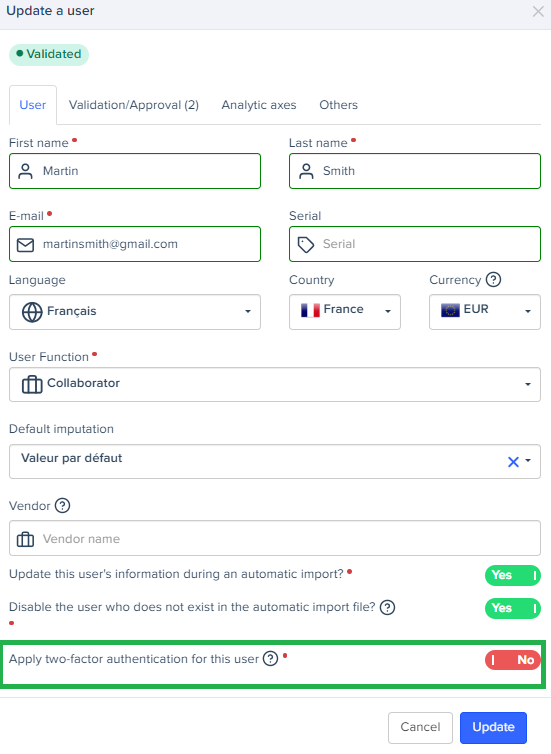
- Disable two-factor authentication for the user by toggling off the switch.
Note: The user will not be logged out at this stage.
- Re-enable the switch for the user. The user will be automatically logged out of all devices and will need to set up two-factor authentication (2FA) during their next login.
Warning: This action clears the user's existing 2FA configuration, requiring them to set up two-factor authentication again during their next login.
Was this article helpful?
That’s Great!
Thank you for your feedback
Sorry! We couldn't be helpful
Thank you for your feedback
Feedback sent
We appreciate your effort and will try to fix the article