Administrators can link Custom Field Values (CFVs) to specific projects directly from the web administration interface which simplifies administrative tasks, reduces reliance on customer support, and provides greater control over configurations.
How It Works
This feature seamlessly integrates into the existing Admin Settings, allowing admins to associate custom field values with projects effortlessly.
Note: This feature concerns only Dropdown custom field values.
Steps to Associate a Custom Field Value with a Project
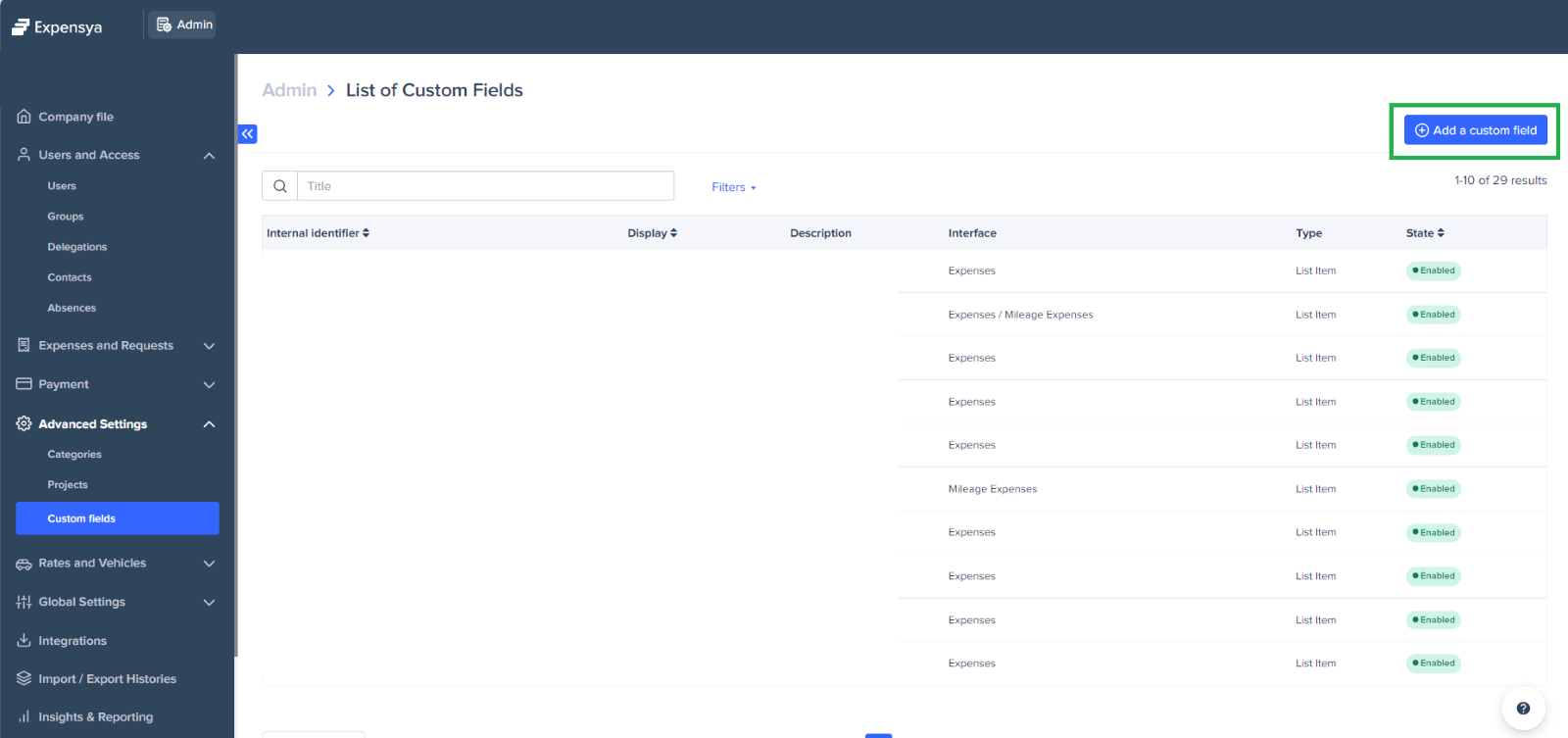
- Navigate to the Admin tab on your Expensya interface.
- Click on the Advanced Settings menu.
- Select the Custom Fields submenu.
- Locate or add a new Custom Field Value.
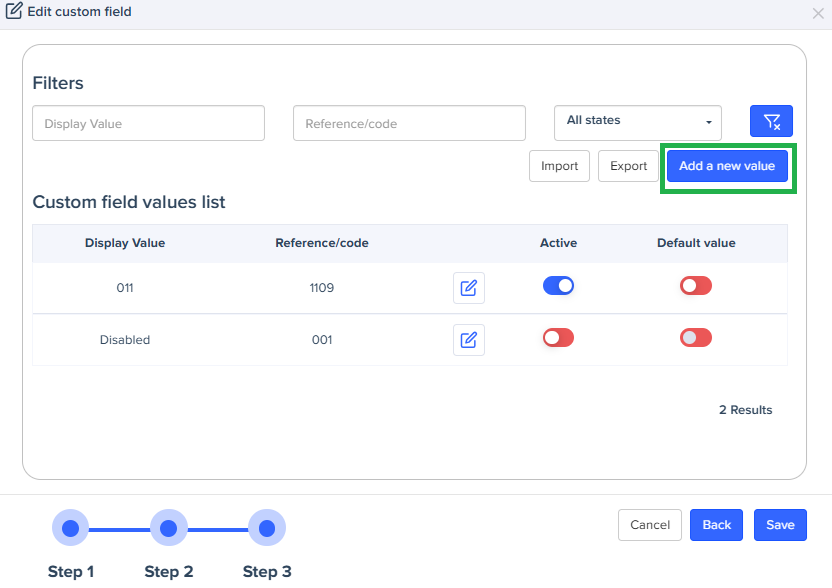
- Click Next twice and then click on Add a new Value
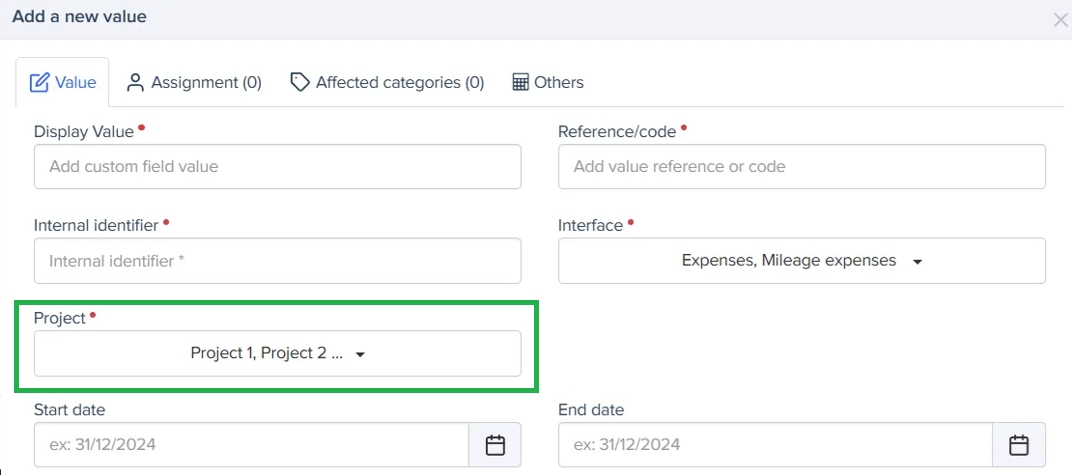
- Add a new value for the drop-down custom field and assign it to one or multiple projects
- Click Save to apply the changes.
Additional Features & Considerations
- Admins can search and filter projects for easier selection.
- The system ensures that a Custom Field and its associated CFVs cannot be linked to the same project to prevent misconfigurations.
- If you need to modify or remove an existing association, you can do so directly from the same interface.
- Changes take effect immediately after confirmation.
Important Notes
- This feature is enabled by default for admins.
- If you need to link a Custom Field Value to a value of another CFV or require advanced modifications, please contact our support team.
Was this article helpful?
That’s Great!
Thank you for your feedback
Sorry! We couldn't be helpful
Thank you for your feedback
Feedback sent
We appreciate your effort and will try to fix the article