The Corporate Documents feature is designed to simplify and optimize the management of payment policies and essential expense-related documents within your tenant.
Here are the streamlined steps to activate the Corporate Documents feature:
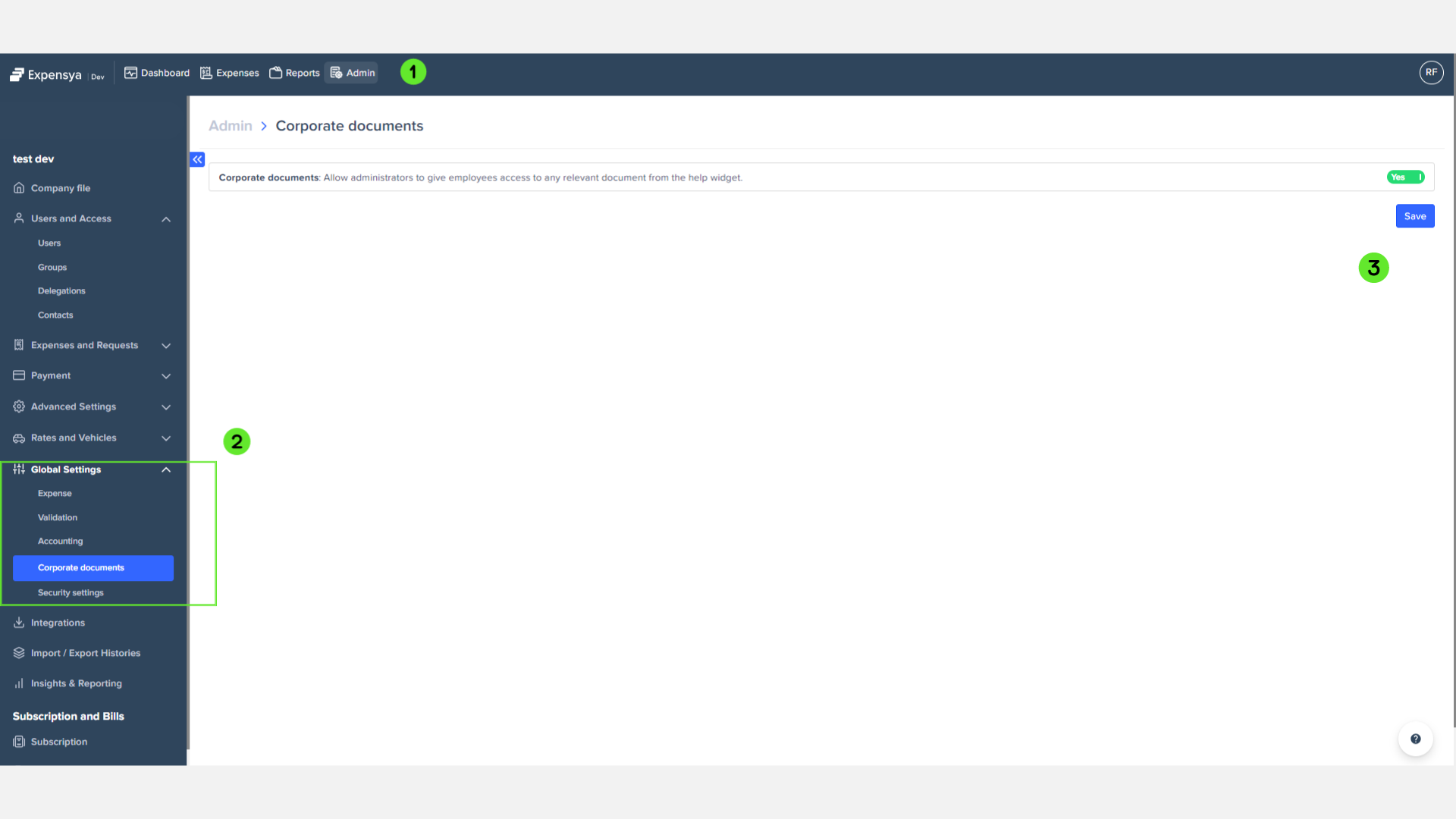
- Navigate to the administration panel.
- Click on Global Settings > Corporate Documents.
- Check the box to enable the feature and save the changes.
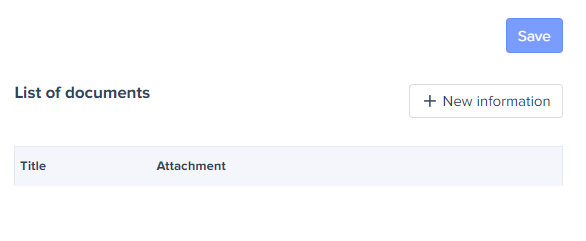
A new segment will appear once the parameter is activated.
To attach documents in the help center, follow these steps on the same interface:
- Follow the steps mentioned above to activate the feature.
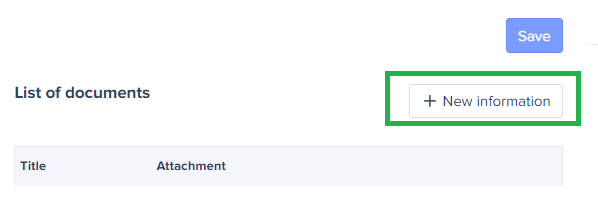
- Click on New Information.
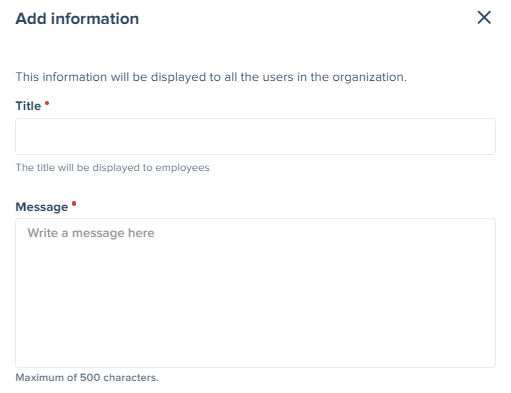
- Enter the Name of the information you added along with a message / description
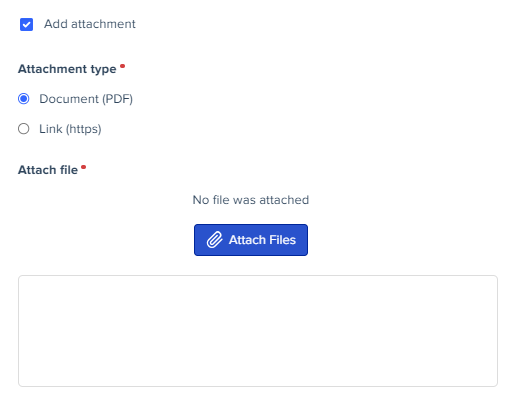
- Click on Add attachement if you would like to add a file attached to the information then pick its format and add it from your computer.
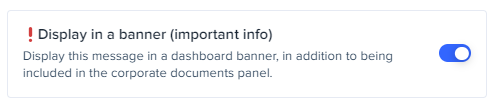
Note: If you want ti display the information as a banner in the dashboard of all emplyees, activate the Display in a banner option
- Click on Publish once you're done.
Users, on the other hand, will have access to the documents through the platform's homepage interface.
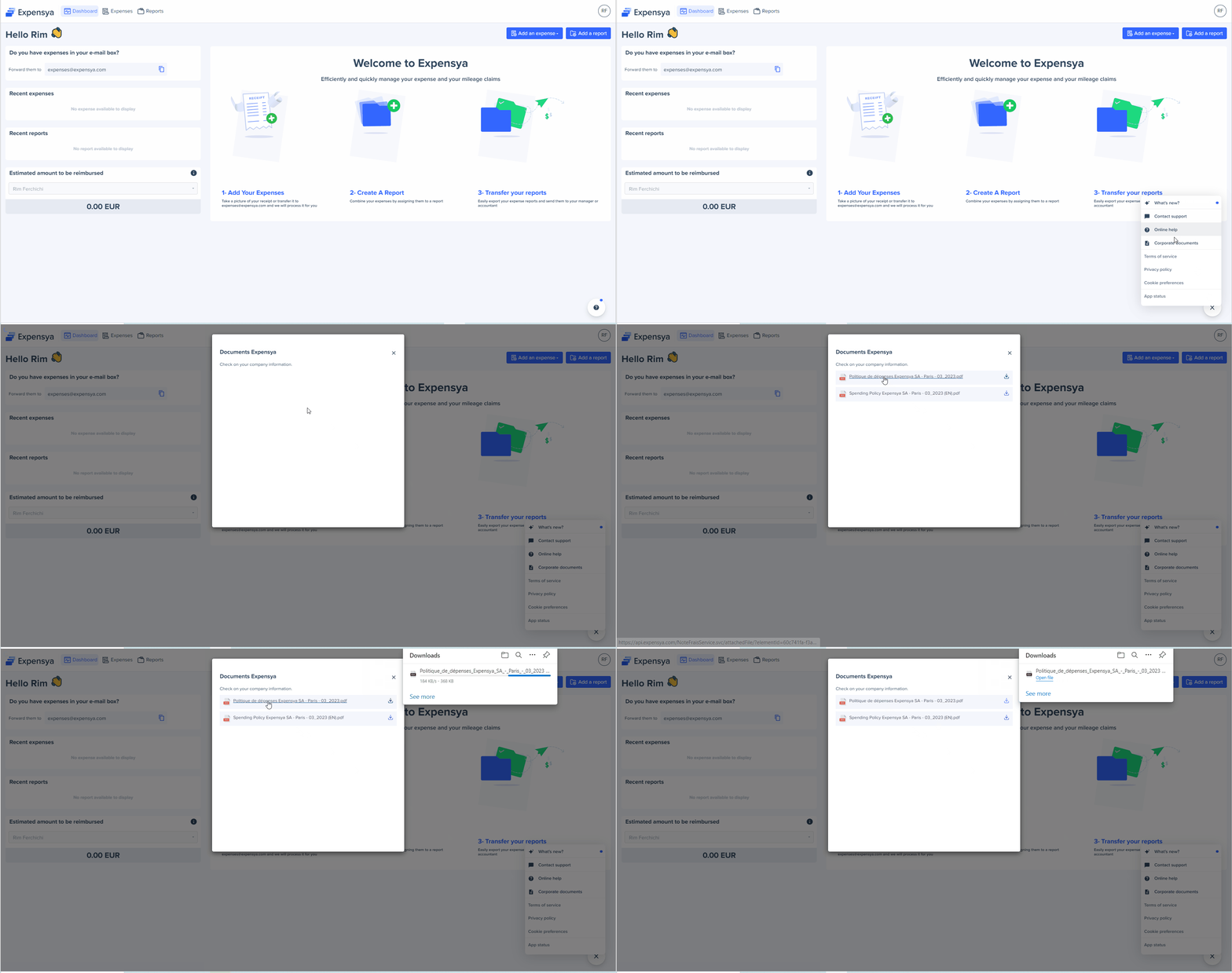
Note: If the administrator deactivates the feature, the Corporate Documents item will no longer appear in the help center.
Was this article helpful?
That’s Great!
Thank you for your feedback
Sorry! We couldn't be helpful
Thank you for your feedback
Feedback sent
We appreciate your effort and will try to fix the article