Please refer to the article on configuring spending policies via this link: How to Configure Expense Policies.
Explanatory Use Case
If your tenant has a rule type like Limit Exceeded for a category (e.g., "Dining") that caps expenses at a certain amount (e.g., €20), and you enter an expense where the amount exceeds the ceiling (e.g., €25), you will only be reimbursed up to the ceiling (in this example: €20).
In the scenario where you want to create a credit note for this expense with an amount exceeding the ceiling (e.g., €25), if the rule is applied to credit notes and you create a credit note with an amount exceeding the ceiling (e.g., €25), the tenant will only recover the capped sum, which was reimbursed initially (in this example: €20).
This is why, as an administrator, you have the option to configure spending policy rules and choose whether they apply to credit notes.
Activate spending policy rules management with credit notes
- Go to Admin, then select Global Settings.
- Access the submenu Expense.
- Activate the option Rules management with credits.
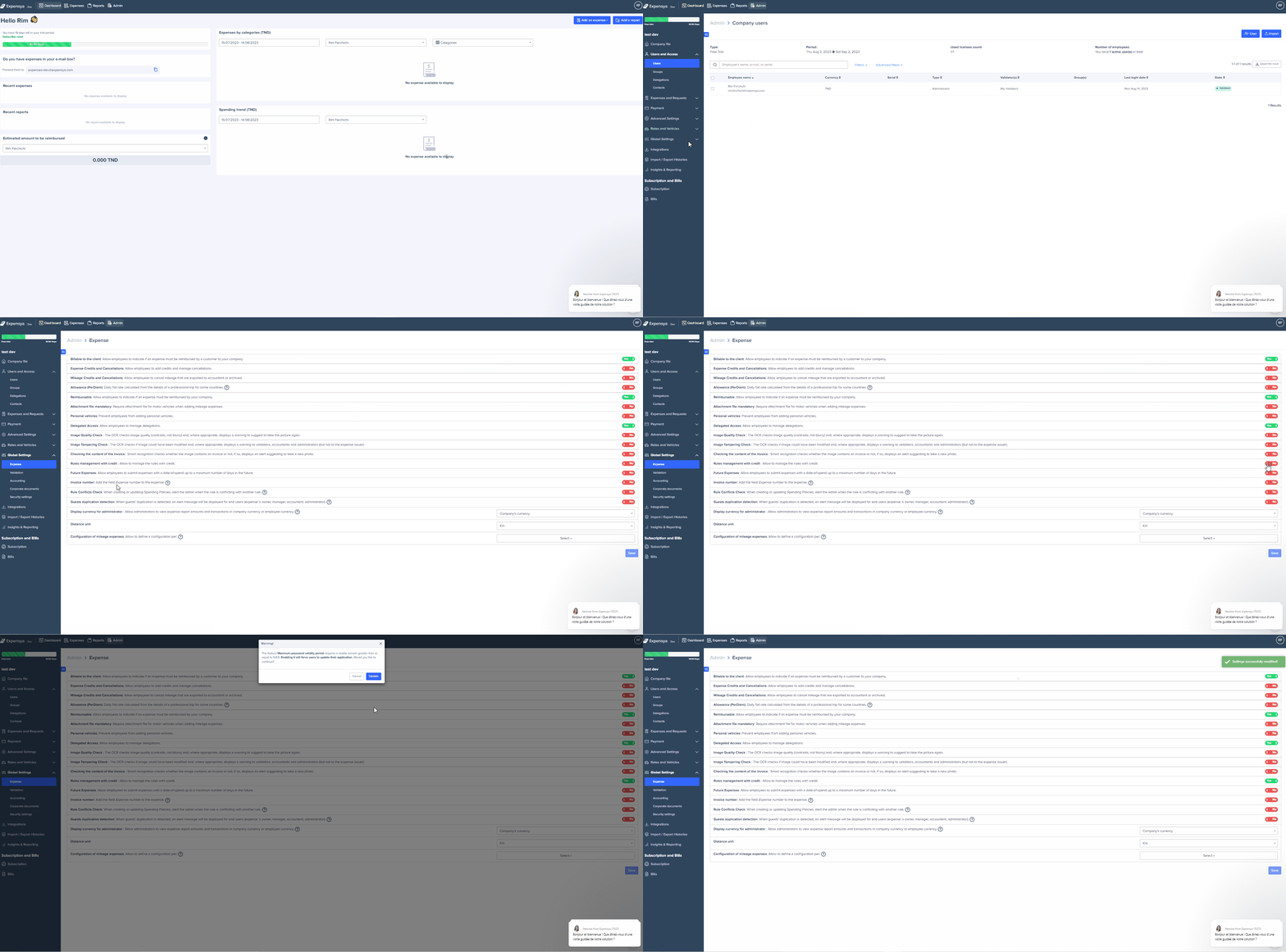
Applying spending policy rules to credit notes
- Go to "Admin" then select the submenu Expense and requests > Spending Policies
- Click on Add a new rule for expenses.
- Select the rule type.
- Click Next.
- Configure the rule application conditions.
- Click Next.
- While verifying your settings and assigning a name and exceptions to the rule,
- Check the option Apply On Credit.
- Click Add the rule.
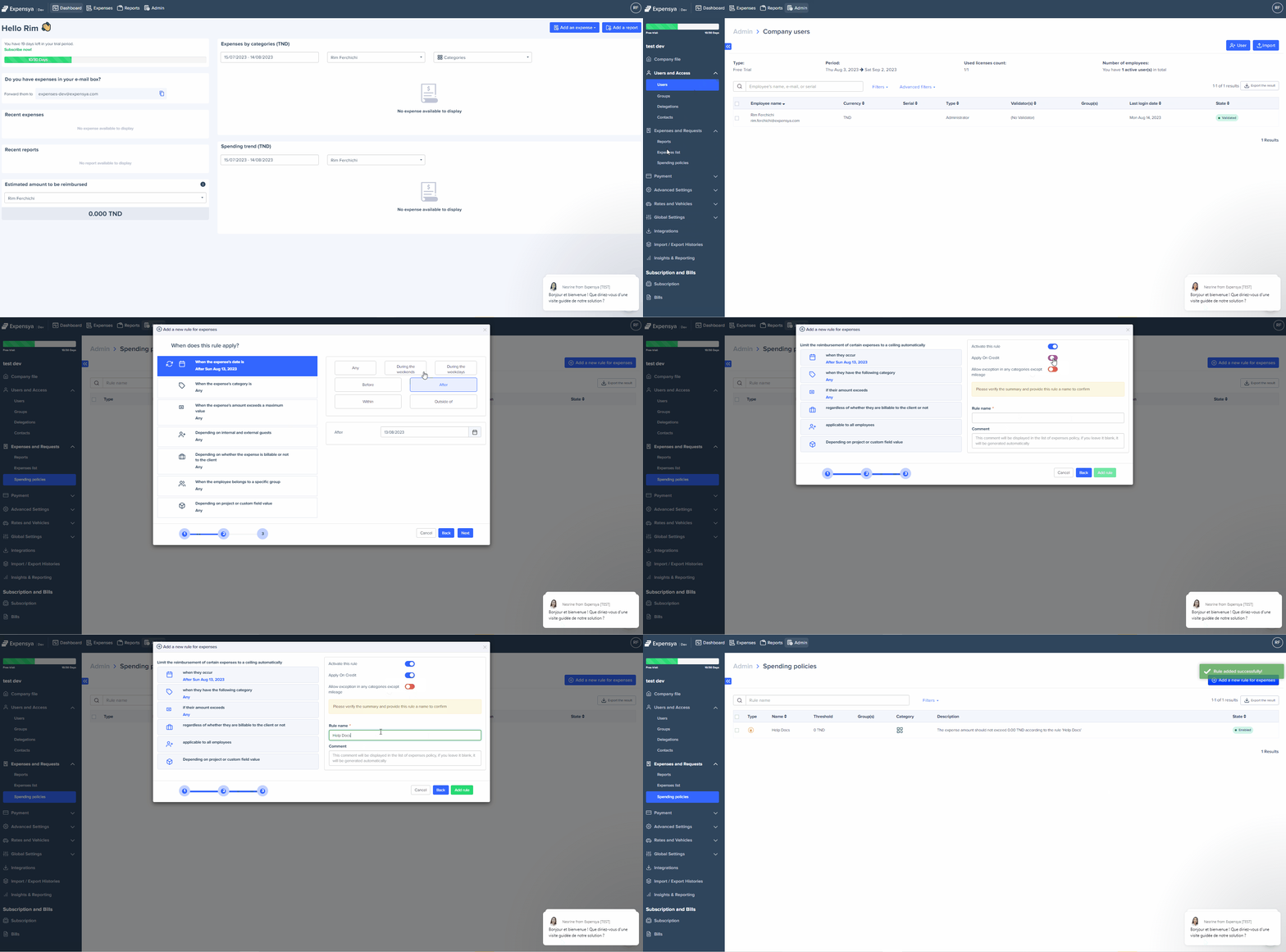
How the spending policy rule with credit notes works
- Go to the Expenses tab.
- Click + Expense, then select Manual Entry.
- Check Credit Note / Cancellation.
- Fill in the fields.
- An alert will appear if the expense rule is not followed.
Was this article helpful?
That’s Great!
Thank you for your feedback
Sorry! We couldn't be helpful
Thank you for your feedback
Feedback sent
We appreciate your effort and will try to fix the article