Expensya allows you to easily manage your vehicles. Here's how to add your vehicles from the website and mobile.
From the web:
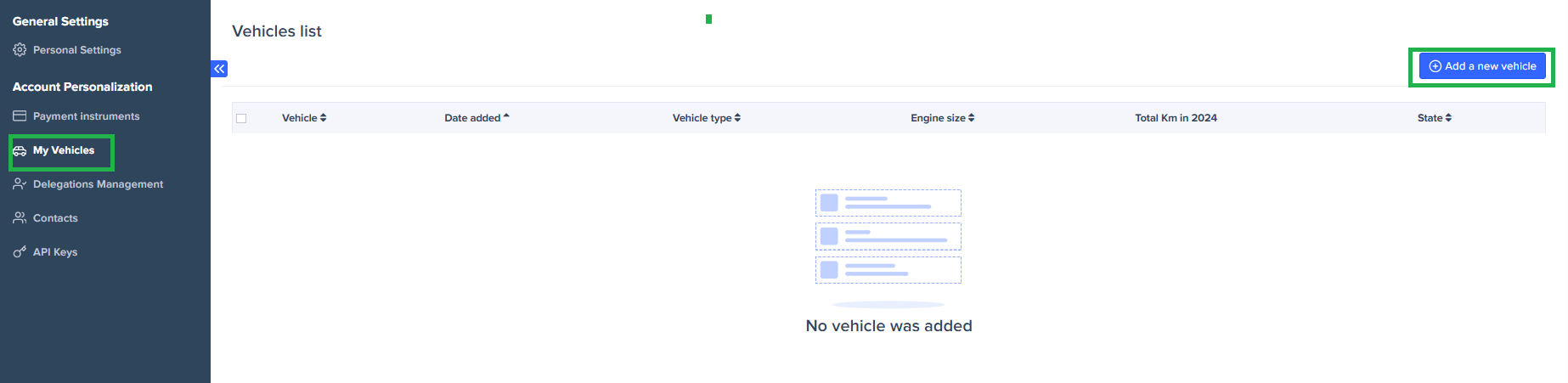
- To add or delete a vehicle:
- Click on your initials in the upper right corner of the screen
- Click on Settings.
- Click on My vehicles.
- After you are redirected to your settings, click on Add a new vehicle and fill in the different fields, indicating the type of vehicle, fiscal power, etc.
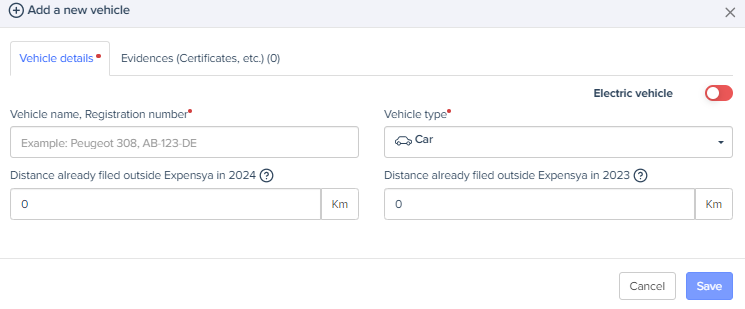
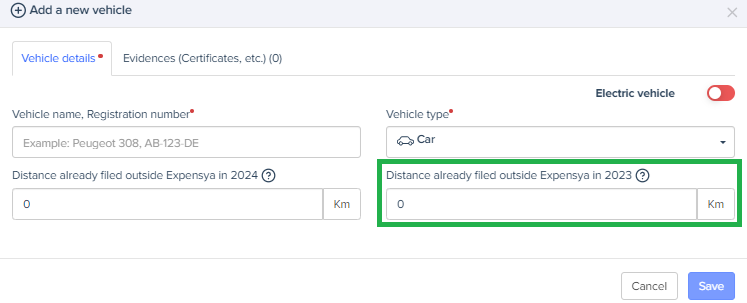
Note: You must fill in the Distance already filed outside Expensya field if you have already been reimbursed for mileage charges outside Expensya during the current year.
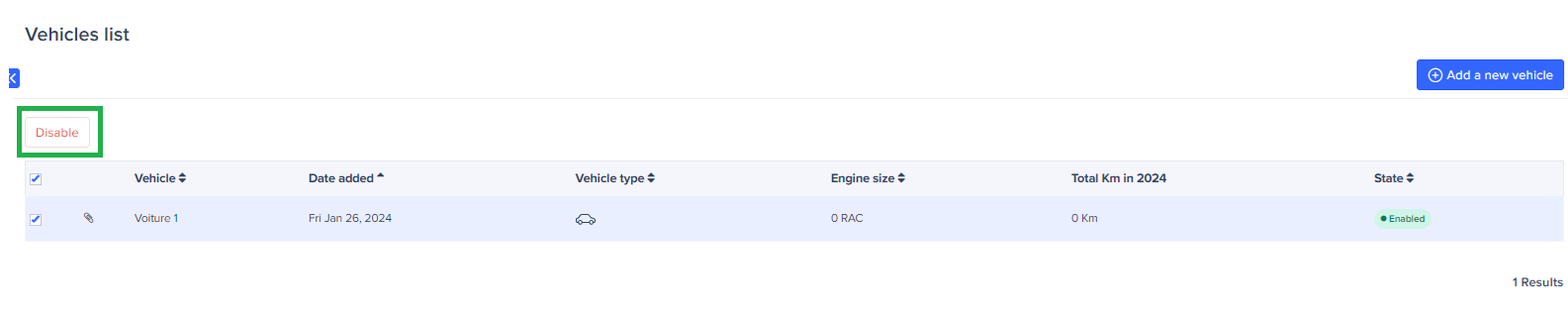
Delete a vehicle:
- Access your vehicles from Settings -> My vehicles.
- Select the vehicle,
- Click on Disable
From the mobile:
- Adding a vehicle:
- Press the Expenses menu in the side menu,
- Press the +
- Press on Mileage or the vehicle icon depending on the version you are using,
- From the mileage expense form, you can add a vehicle using the + button,
- Fill in the fields and save.
Deactivate a vehicle:
Check the green icon to deactivate a vehicle.
Was this article helpful?
That’s Great!
Thank you for your feedback
Sorry! We couldn't be helpful
Thank you for your feedback
Feedback sent
We appreciate your effort and will try to fix the article