Fast Scan allows you to take a picture of your invoice and will process it for you. This feature is available both from the website and the mobile app.
- From the website:
- Access your list of Expenses, or a report
- Click on the Add button,
- Choose the From a receipt option,
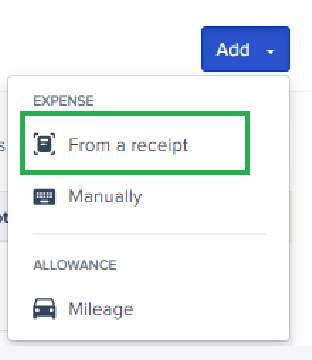
- You can add one or more documents:
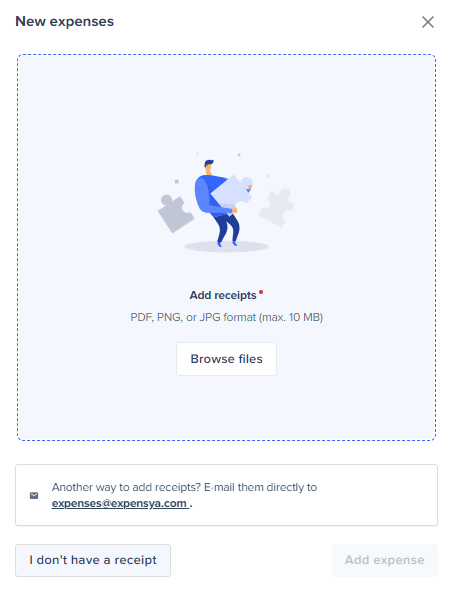
Tip: The average processing time per receipt is 10 seconds!
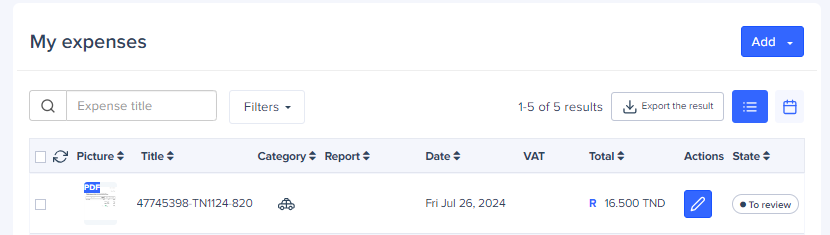
All you have to do is approve the recognized data and add more information if you wish, such as the description and your expense is approved !
- From the mobile app:
To scan a receipt using Fast Scan:
- Go to My Expenses menu
- Press the + button located in the bottom right corner of the screen.
- Press Scan option
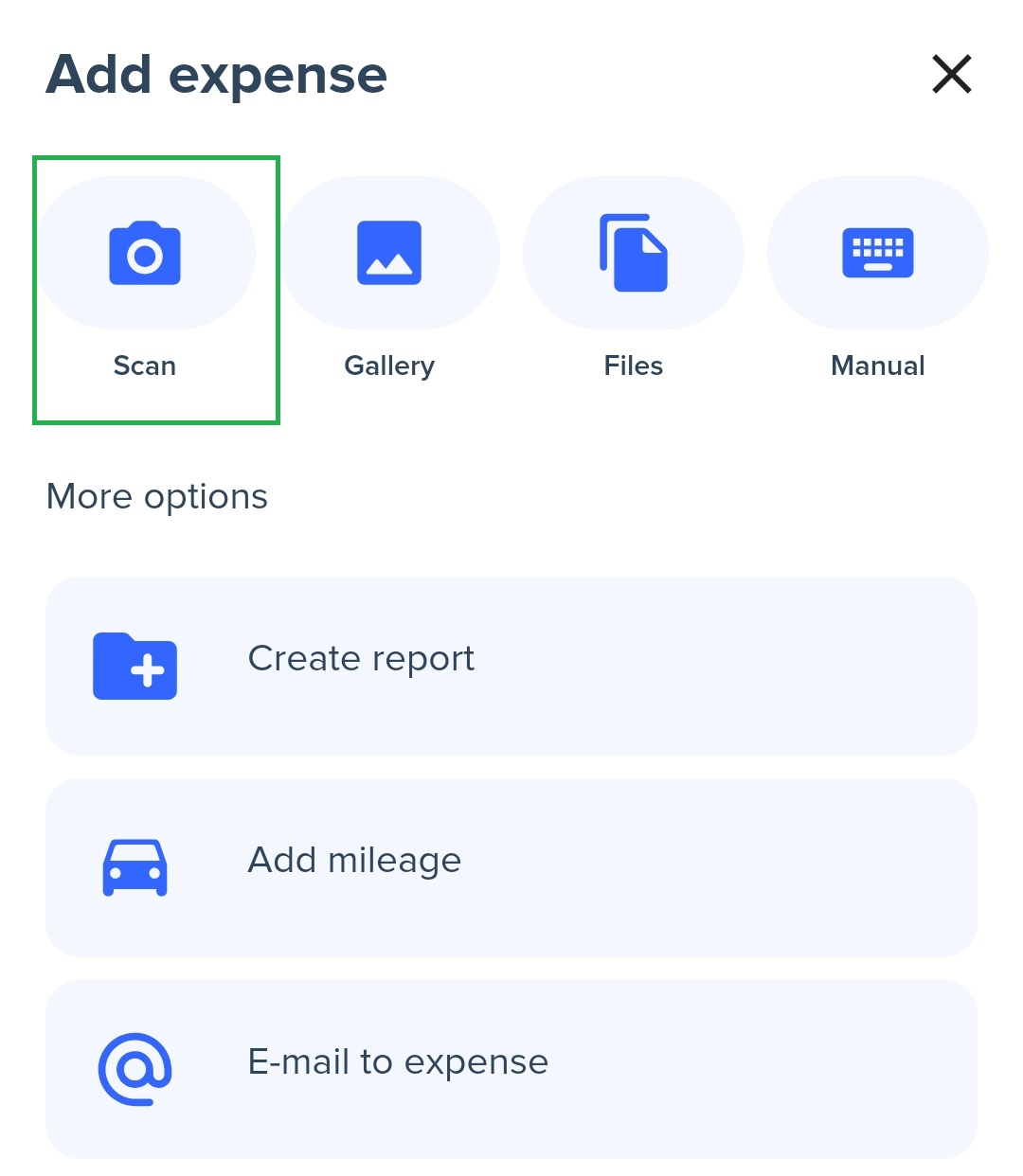
- Take a picture of your invoice by selecting out of the offered modes:
- Simple scan: to take a picture of one receipt.
- Multiple scans: to take a picture of several receipts in burst mode.
- Multi-page invoice: for invoices on several pages, Expensya will transform into a PDF file that you can view from the web version.
- Crop your photo and approve it so that it is processed by our fast scan.
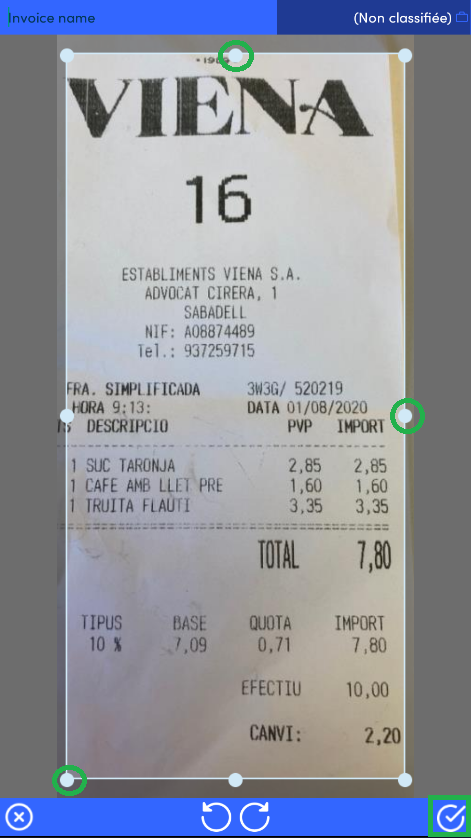 | 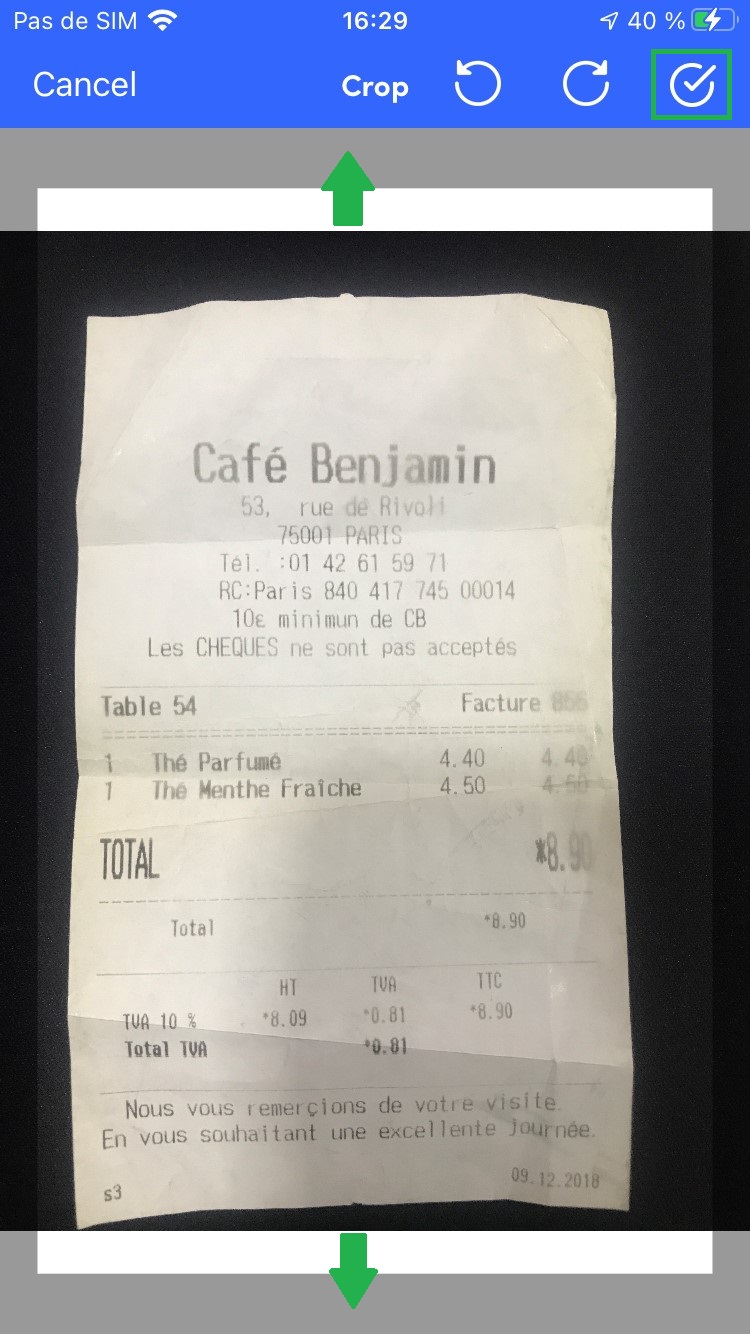 |
Android | IOS |
Was this article helpful?
That’s Great!
Thank you for your feedback
Sorry! We couldn't be helpful
Thank you for your feedback
Feedback sent
We appreciate your effort and will try to fix the article