As an Expensya cards' admin on the Expensya platform, you have the ability to download Expensya Cards account statements in both PDF and MT940 formats. This feature allows for efficient auditing and reconciliation directly within the platform, ensuring you have the necessary records without needing to navigate away.
This article outlines the steps to download your Expensya Cards account statement in pdf format.
Tip: Refer to this article to download your Expensya Cards account statement in MT940 format.
Why Use PDF Format?
- PDF Format:
The PDF format is essential for audit purposes as it provides official records that are non-editable and compliant with standards. This format is useful for presenting documentation during audits and regulatory reviews.
Steps to Download the Account Statement
- Log in to your Expensya account.
- From the Admin tab, go to Payment menu, Bank Accounts submenu
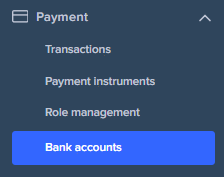
- Go to the Expensya Cards Accounts tab
- Click on one of the bank accounts listed and go to Account Statements tab
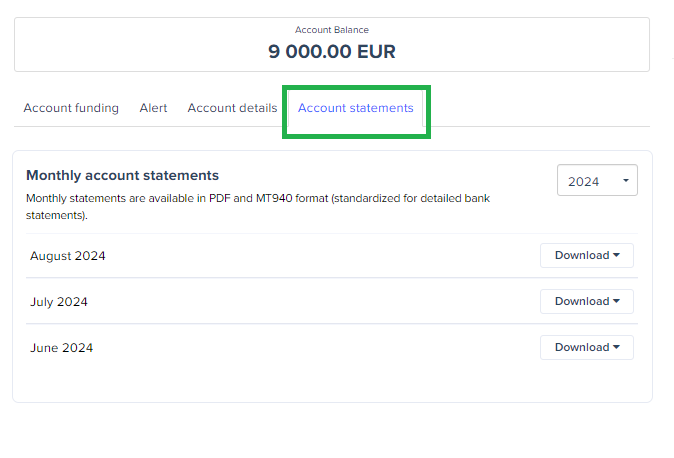
- You will find the list of the monthly financial statements
- Click on the Download button and choose the desired option among the list. The default format displayed is PDF.
- Click the Download button to obtain the account statement in your selected format.
Note: The downloaded file will be generated by the provider (Swan) and should reflect the account statement for the selected month.
Was this article helpful?
That’s Great!
Thank you for your feedback
Sorry! We couldn't be helpful
Thank you for your feedback
Feedback sent
We appreciate your effort and will try to fix the article