After creating a report, you can assign one or more expenses to it in various ways, either through the web or the mobile app.
From the website:
If you have expenses and mileage charges already entered, you can assign them to an existing report:
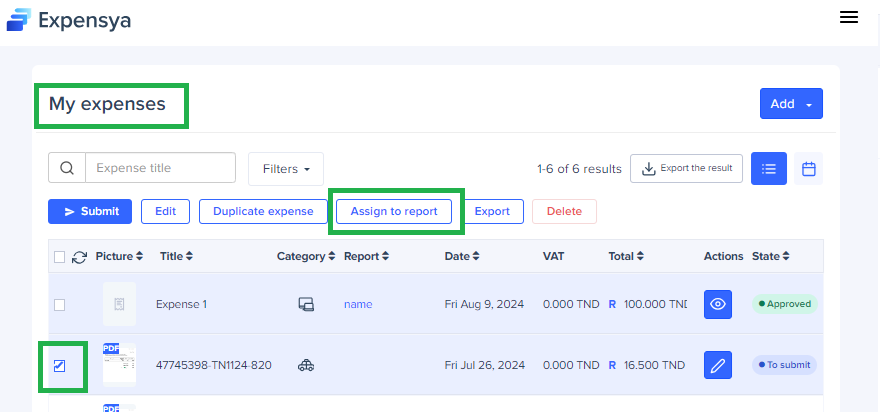
- Check the Expenses or mileage to assign from the Expenses tab.
- Click on Assign to a report.
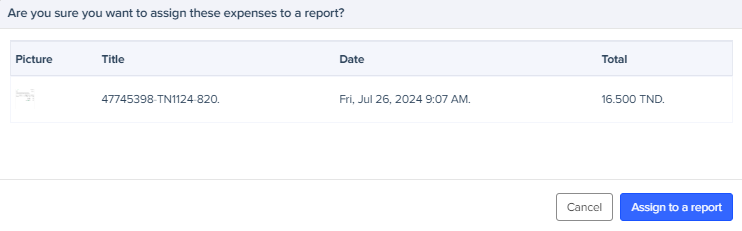
- Choose the Report and confirm by clicking on Assign.
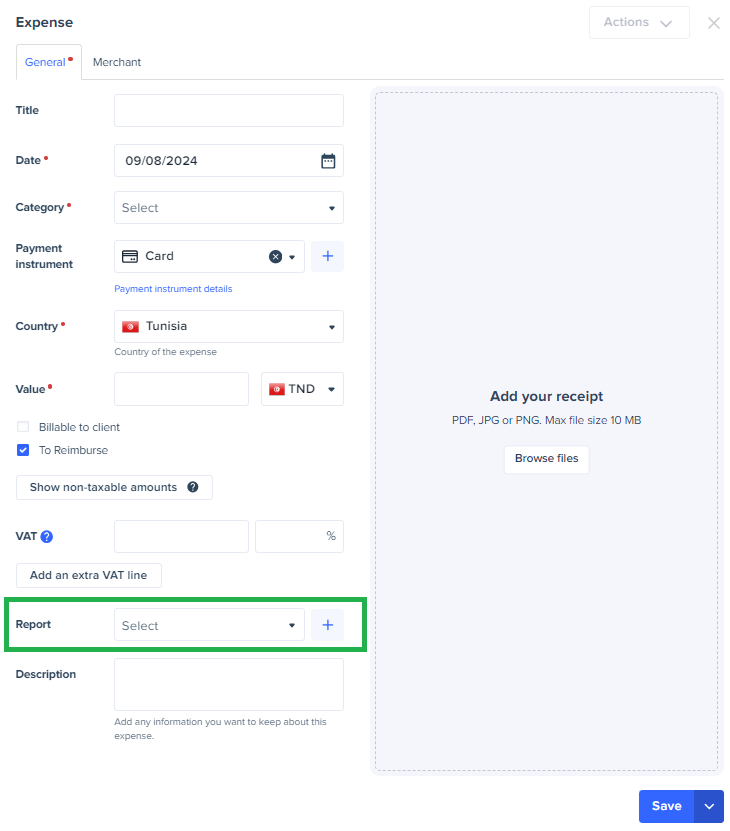
- From the form of expense creation, in the "Report" field, create a report by clicking on the "+" or select an existing one from the drop down list.
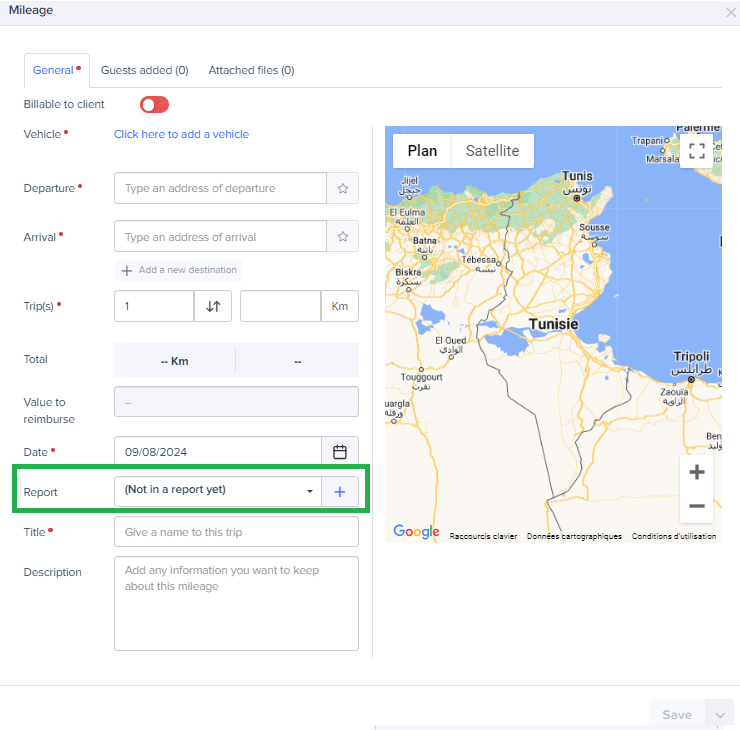
The same goes for your mileage;
From the mobile version:
If your expenses or mileage charges are already entered:
- Press the My Expenses menu.
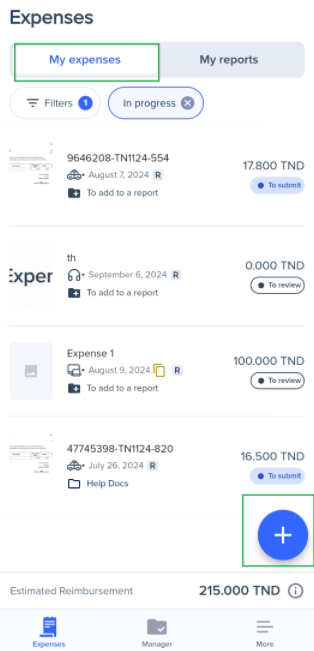
- Long press the expense or mileage charge to assign or create it by clicking on the + button.
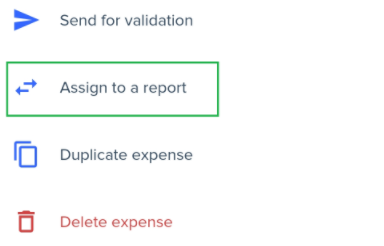
- Click on the 3 points located in the upper right corner of the screen then click on Assign to a report.
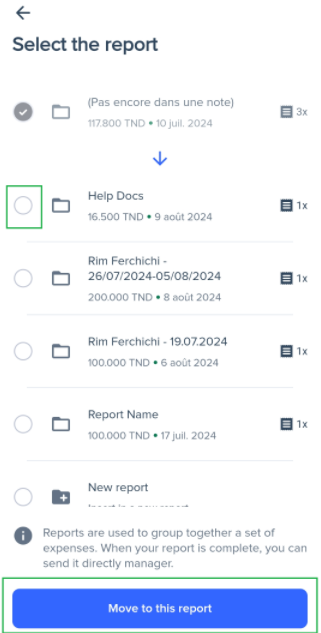
- Select the report to which you want to assign the expense and press Move to this report.
- Select the Report from the drop-down menu when entering your expenses or mileage charges
Was this article helpful?
That’s Great!
Thank you for your feedback
Sorry! We couldn't be helpful
Thank you for your feedback
Feedback sent
We appreciate your effort and will try to fix the article