Admins have the ability to set up automatic funding for their Expensya Card accounts, ensuring continuous operation and preventing transaction rejections due to insufficient balance. Although manual transfers from the tenant account to the Expensya card account are an option, admins may find it challenging to predict the exact amounts and timing needed to maintain an adequate balance. Automatic funding offers a convenient solution to maintain the required funds proactively.
Follow these steps to configure automatic funding:
- From the Admin tab, go to the Payment menu.
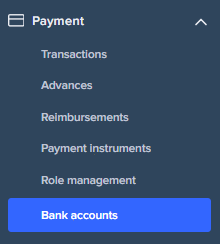
- Click on the Bank Accounts sub-menu then click on one bank account among the list
- Activate Automatic Funding in the Account Funding Tab
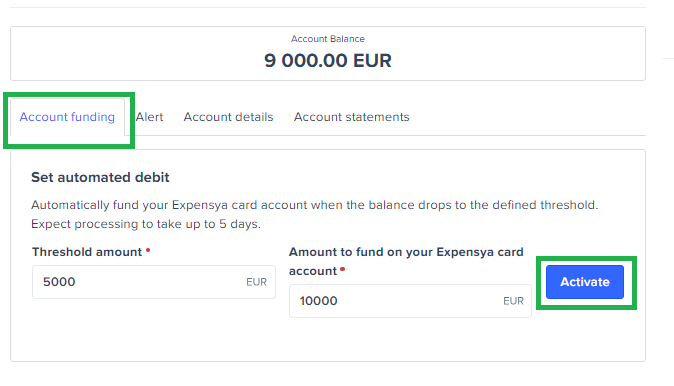
In the Account Funding tab, admins can enable automatic funding by setting the following parameters:
- Threshold Amount: The minimum balance at which automatic funding will be triggered. When the account balance reaches this threshold, the funding process is initiated.
- Amount to Fund: The specific amount to credit to the Expensya Card account each time the threshold is met.
This feature can be easily deactivated from the same Account Funding tab if automatic funding is no longer required.
Was this article helpful?
That’s Great!
Thank you for your feedback
Sorry! We couldn't be helpful
Thank you for your feedback
Feedback sent
We appreciate your effort and will try to fix the article