Note: To explore the feature of assigning a supplier to an expense and its benefits, please refer to this article.
To assign a supplier to an expense you must first make the supplier field either Optional or Mandatory in the category of expenses related to the supplier.
To do so,
- Go to the Admin tab
- Click on Advanced Settings sub-menu > Categories
- Click on the category you need to configure
- In the Customization tab, look for Supplier
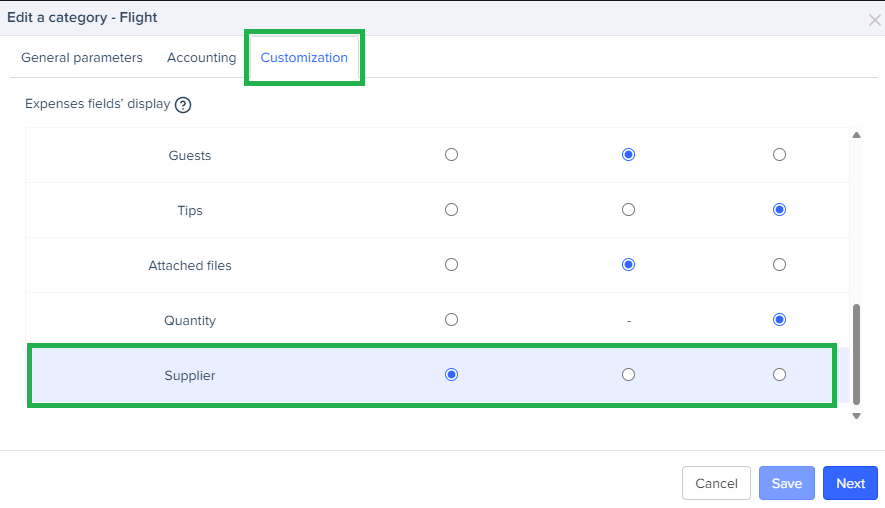
- Set the parameter on Optional or Mandatory
For categories where suppliers are marked as mandatory or optional, the supplier field will be visible in the expense form. This allows administrators and accountants to select the appropriate supplier when processing expenses.
Assigning the supplier to respective expenses
- From the Admin or Accountant tab ,
- Go to the Expenses and requests sub menu > Expenses List
- Choose the expense within Exported state, you need to assign a supplier to
- Assign a supplier from the supplier’s list
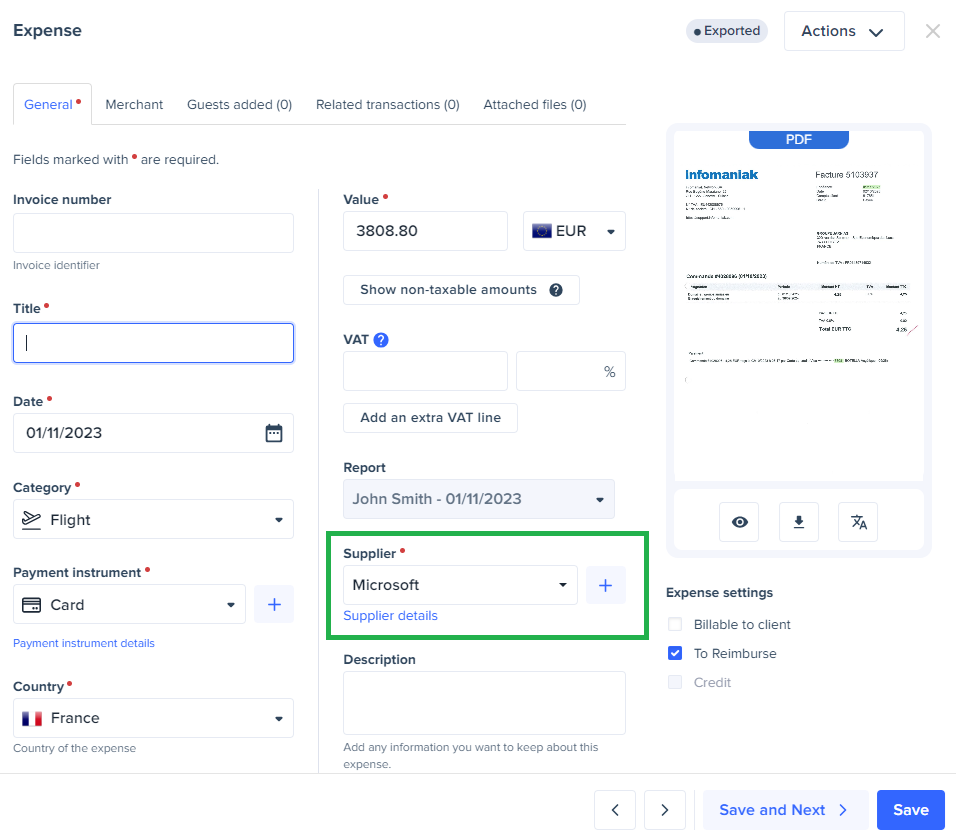
Note: To add a new supplier to the suppliers’ list, please follow the steps mentioned in this article.
Was this article helpful?
That’s Great!
Thank you for your feedback
Sorry! We couldn't be helpful
Thank you for your feedback
Feedback sent
We appreciate your effort and will try to fix the article