With the Delegated Access Import feature, administrators can easily configure delegated accesses for multiple users simultaneously using a CSV file, saving time and reducing manual errors.
Additionally, administrators can export existing accesses for a complete overview of ongoing delegations.
Delegated Access Import:
To import delegated accesses,
- Go to the Admin tab, then select the Users and Access menu.
- Navigate to the Delegations submenu.
- Click on Import.
- Download the template using the Download Template File button.
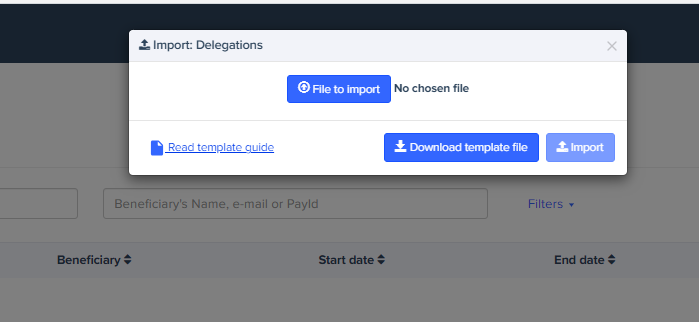
The fields in the template file are as follows:
Account owner e-mail address | Indicate the e-mail address of the account owner. |
Account owner Serial number | Indicate the account owner's Serial number. |
Delegation beneficiary e-mail address | Enter the e-mail address of the beneficiary of the delegated access. |
Delegation beneficiary Serial number | Enter the serial number of the beneficiary of the delegated access. |
Delegation access type | Indicate the type of delegated access (All, Manager, Employee, Read Only...) |
Delegated Access Export:
It is also possible to export existing delegated accesses using the same Excel file template as for the import.
To do this,
- Go to the Admin tab, then select the Users and Access menu.
- Navigate to the Delegations submenu.
- Click on Export the result, then on Continue Export.
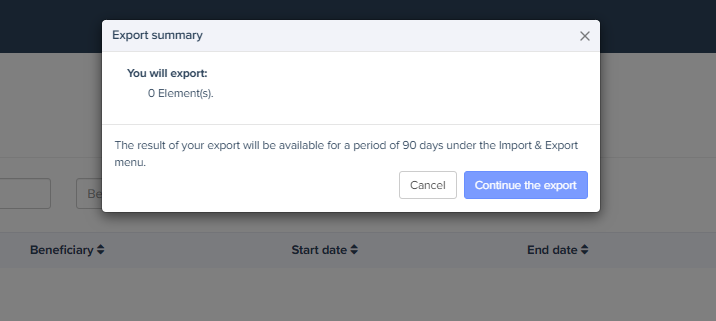
The fields in the exported file are as follows:
- Owner Email
- Owner ID
- Beneficiary Email
- Beneficiary ID
- Access Type
Was this article helpful?
That’s Great!
Thank you for your feedback
Sorry! We couldn't be helpful
Thank you for your feedback
Feedback sent
We appreciate your effort and will try to fix the article