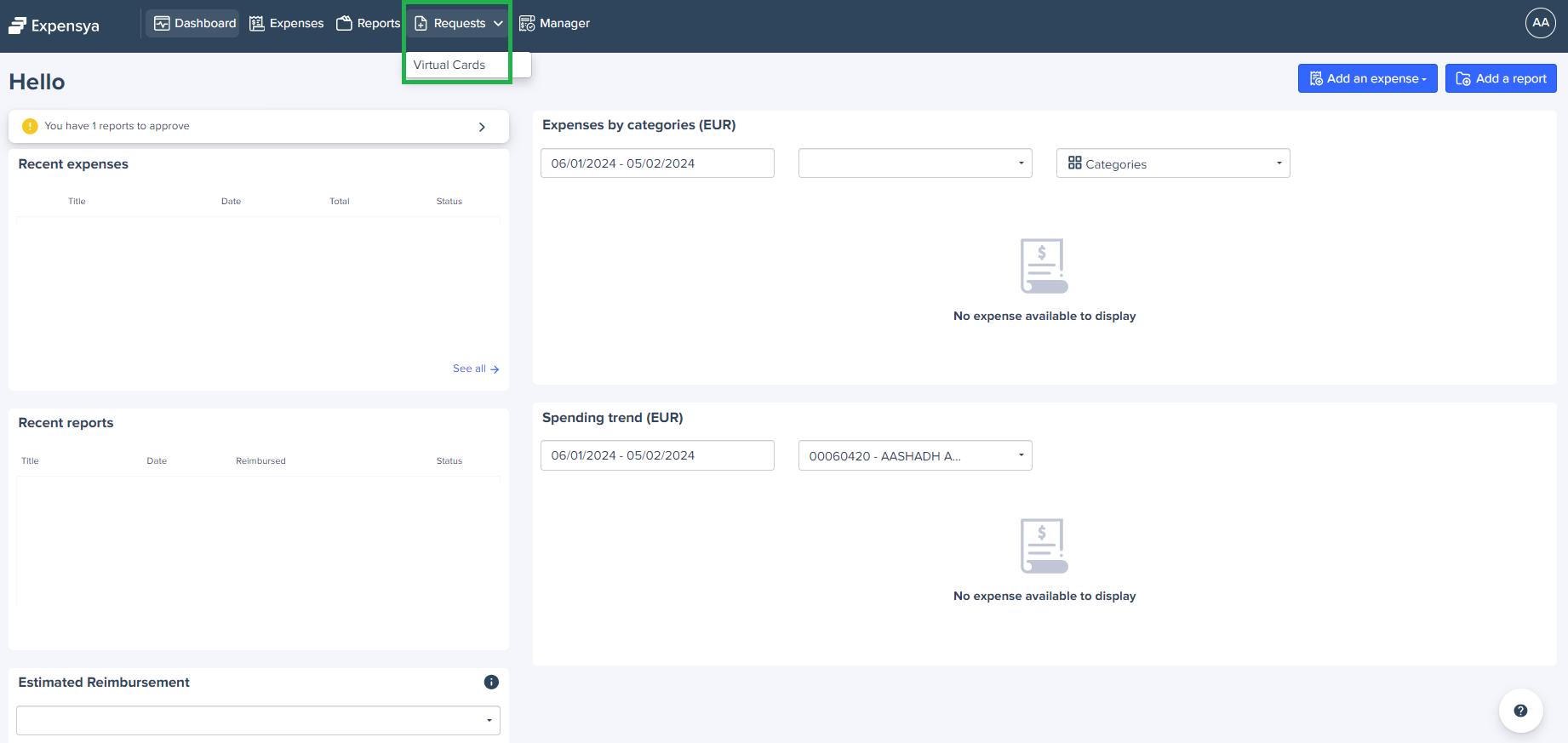
Employees with the activated virtual card module will find a new "Virtual Card" menu under the "Request" tab.
Requesting a virtual card from the web version:
To request a virtual card from the web version of Expensya, simply:
- Click on the Requests tab.
- Click on Virtual Cards
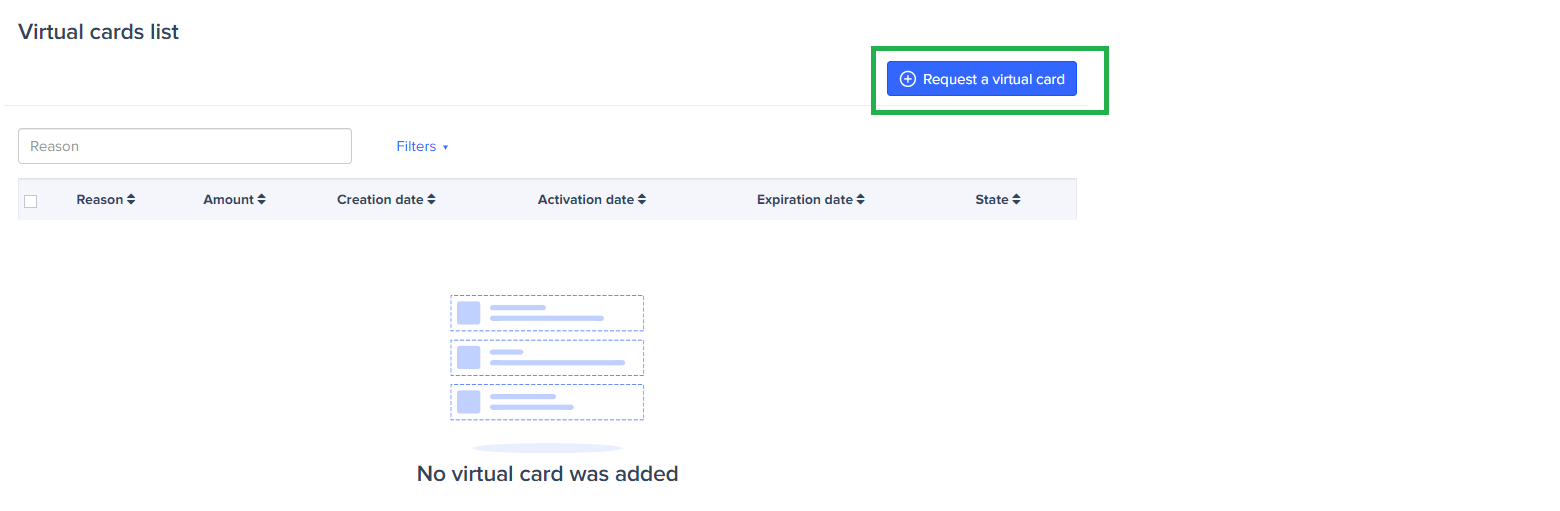
- Click on Request a virtual card
- Fill in the mandatory fields and click Send
Once your virtual card request is approved by your manager, you can use the virtual card for your authorized online purchases during the card's validity period.
To do this, simply:
- Click on the Requests tab.
- Click on Virtual Cards.
- Click on the approved card.
- You can copy the card information directly by selecting it.
Requesting a virtual card from the mobile application:
To request a virtual card from the mobile application, follow these steps:
- Click on Virtual Cards
- Click on the + button.
- Fill in the mandatory fields and click the Send button.
Note: A virtual card request follows the same approval process as expense reports, as established by your Administrator.
Was this article helpful?
That’s Great!
Thank you for your feedback
Sorry! We couldn't be helpful
Thank you for your feedback
Feedback sent
We appreciate your effort and will try to fix the article